BC MTO Claim Viewer
Offline mineral & placer claim boundaries for the backcountry — GPS corner-finding, no signal required.
Scan with your phone's camera to open this page directly and download.
Screenshots
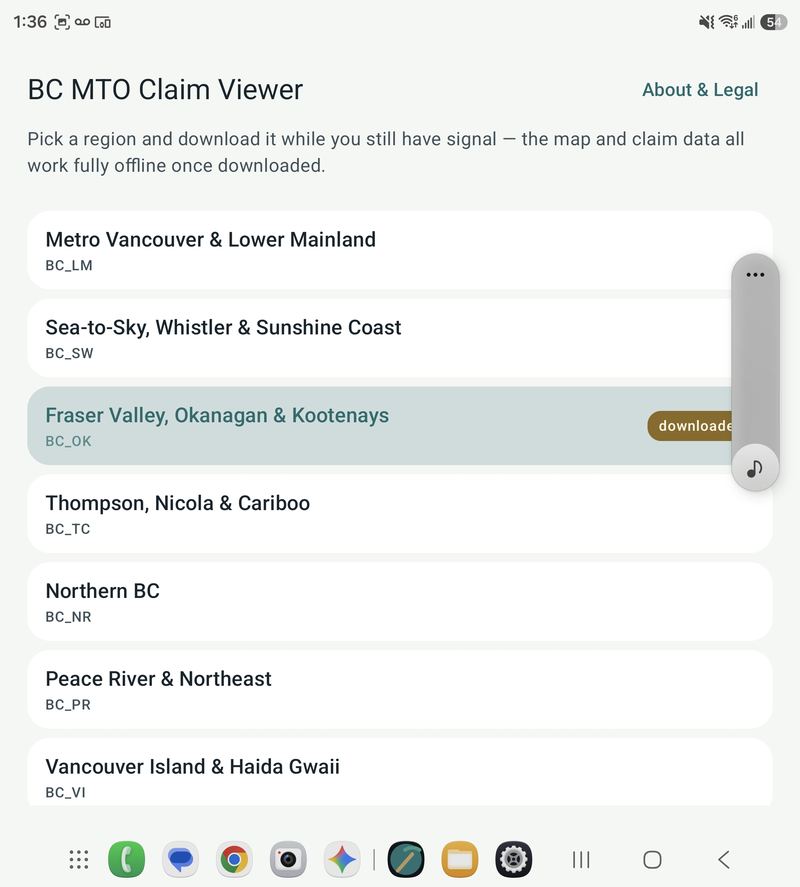
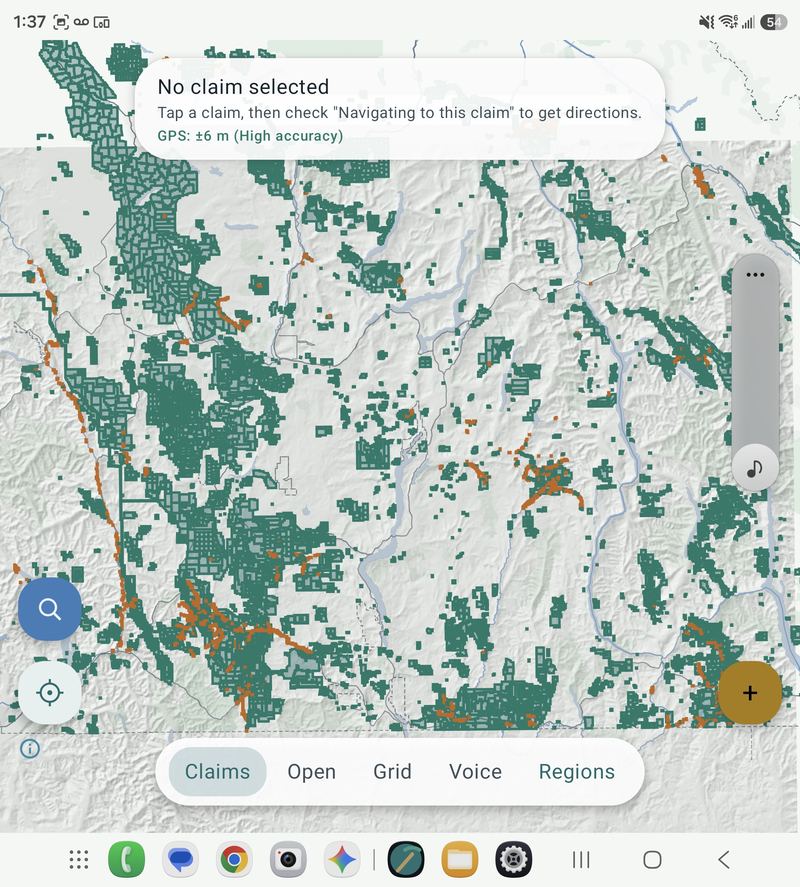
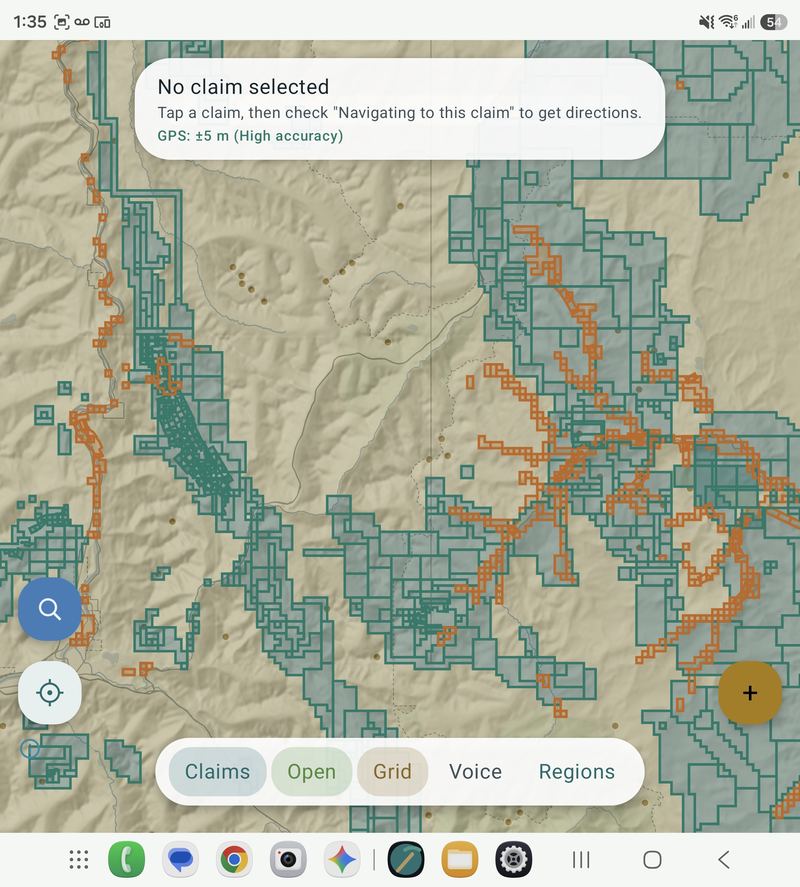
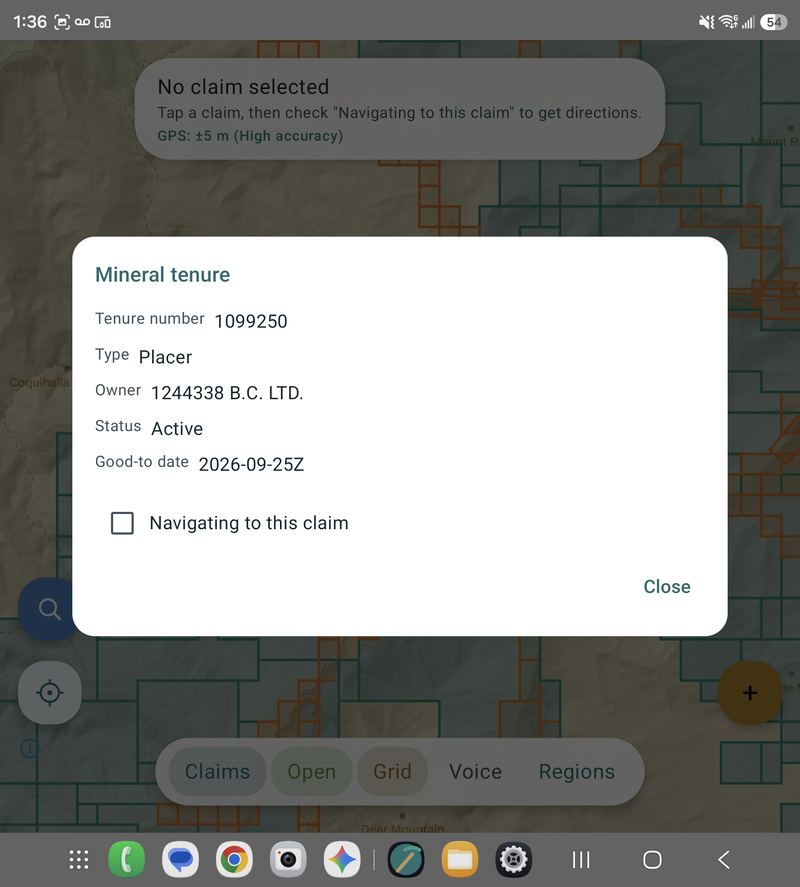
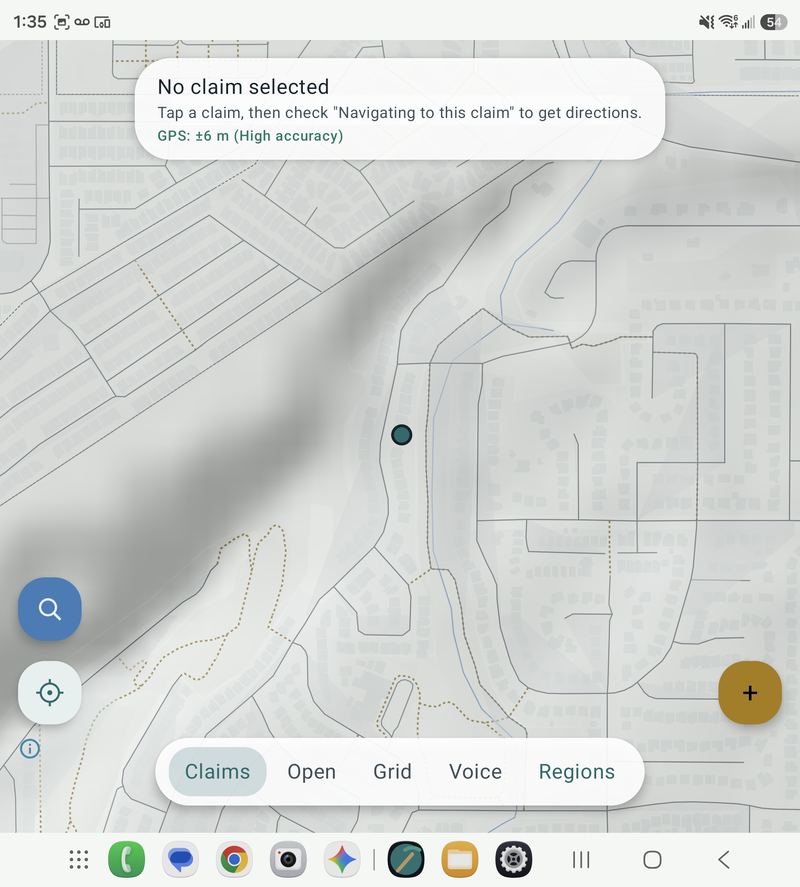
Screenshots taken on a Galaxy Z Fold 8 Ultra — the app renders on all Android screen sizes, phone or fold.
Installing (one-time setup)
This app isn't on the Play Store, so your phone will put up a few safety checks before it lets you install it. None of these are a problem with this app specifically — every app installed this way triggers them. Follow the steps below in order; most people only need step 1–4.
- Tap Download APK above, on your Android phone (not a computer).
- Open the downloaded file — from the notification that appears, or from your Files / Downloads app.
- You'll see a screen saying your phone doesn't allow installs from this source. Tap Settings on that screen.
- Turn on Allow from this source (this may be called Install unknown apps, and applies only to the app you used to open the file, e.g. Chrome or Files — not your whole phone). Tap the back arrow, then tap Install again.
- Once installed, open MTO Viewer and download a region while you still have signal — the map and claim data work fully offline after that.
If your phone blocks the install instead of asking permission
Newer Android versions add extra layers on top of step 3–4 above. If you hit a wall, find your situation below.
- "Google Play Protect blocked this install" / "Unsafe app blocked": This is Play Protect scanning the file, not a verdict that it's malware — it flags anything unrecognized by Google, which includes every small/independent app. Tap More details on that screen, then Install anyway. If that option isn't there, open Settings → Security & privacy → Play Protect (gear icon), and use Pause Play Protect — it auto-re-enables after 24 hours, so you don't need to remember to turn it back on.
- Samsung phones — "Auto Blocker" prevents the install entirely: Go to Settings → Security and privacy → Auto Blocker and turn it off, or tap into it and allow this one install. Turn Auto Blocker back on afterward if you'd like — it won't affect MTO Viewer once installed.
- "Install unknown apps" is greyed out and won't turn on: This means Advanced Protection mode is turned on for your phone (a stricter, opt-in security mode — most people don't have this on). Go to Settings → Security and privacy → Advanced Protection and turn it off, then go back to step 3. This does reduce your phone's overall security, so consider turning it back on after you've installed the app if you enabled it deliberately.
Exact menu names vary a little by phone brand and Android version — the underlying settings above exist on effectively every modern Android phone, just sometimes under slightly different wording. You're installing directly from BrouseGroup's own server; the file never goes through a third-party app store. Already have an older version installed? Just download and install again — it updates in place, no need to uninstall first.
What's inside
- Offline topo/trail map with claim boundaries overlaid mineralplacer
- Tap any claim for tenure number, owner, status, and expiry
- Check off claims you're heading to and get a live compass bearing + distance to the nearest one new
- Find a specific claim by tenure number or owner name
- Drop text/voice field notes at a spot (e.g. marking it for later excavation) and navigate back to them
- Hands-free voice guidance as you walk in
- Opens straight to your last-used region on relaunch — no re-picking every time new
- All claim data pulled from DataBC's Mineral Titles Online — refreshed regularly, with an in-app nudge when a newer sync is available